
Chat with customers, send a message to many of them at once, and let follow-ups run on their own.
The WhatsApp page has six tabs: Inbox, AI Assistant, Broadcasts, Follow-ups, Templates and Setup.
Set up
Open WhatsApp › Setup and choose which number to connect:
- The number you use in the WhatsApp Business app. Keep using the app on your phone too; you link it by scanning a QR code from the app.
- A number that is not on WhatsApp (a new or spare one). You confirm it with a code Meta sends by SMS or call.
Then choose Connect with Facebook and follow the Facebook window. It takes about two minutes, with no IDs or tokens to copy. Once connected, your number shows at the top of the page.
Connect manually instead is for developers who already have a Meta app: paste the Phone number ID, WhatsApp Business Account ID and access token, and point the app's webhook at the details shown.
Inbox
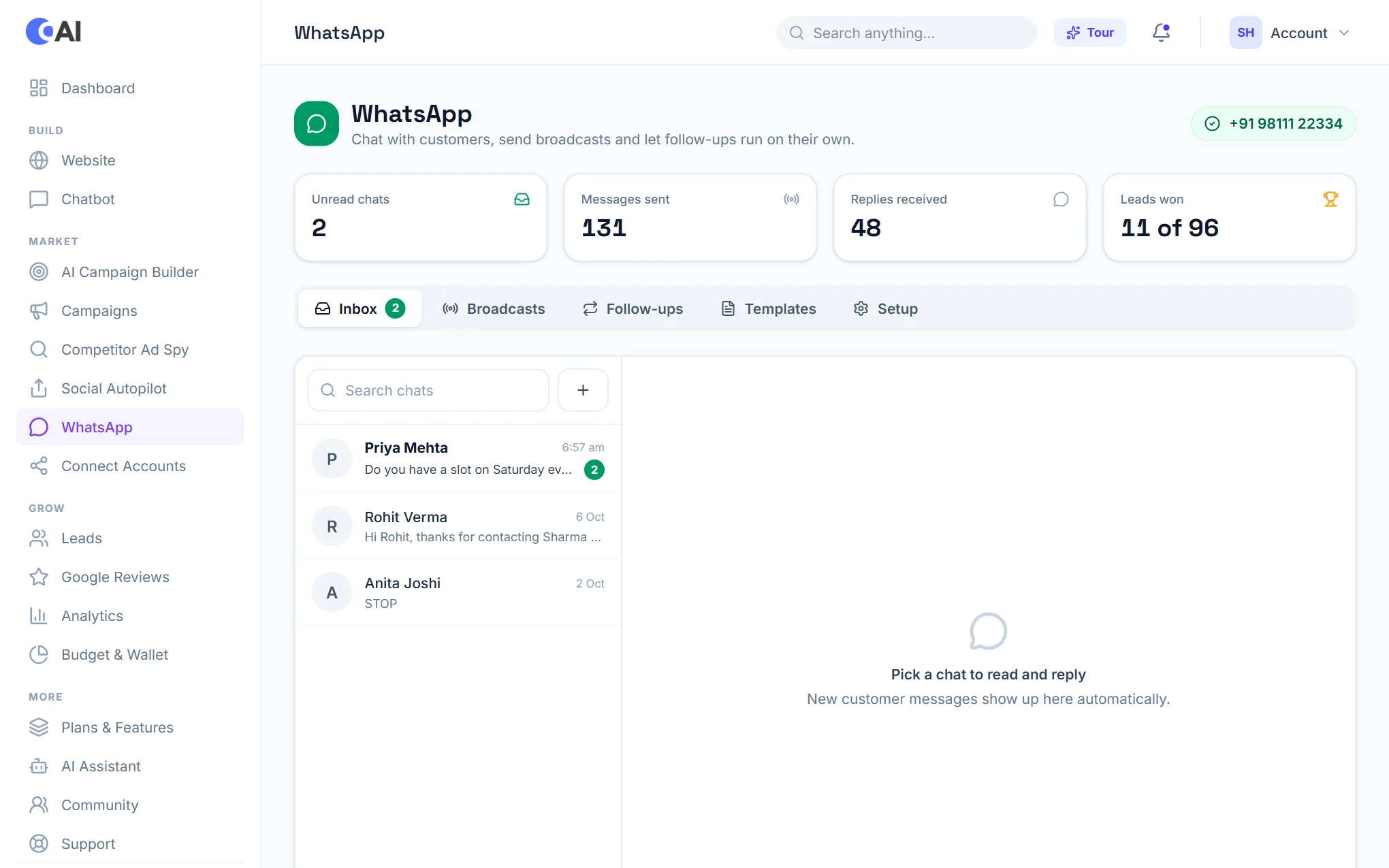
Every conversation with a customer is in the Inbox. Pick a chat to read and reply. New messages appear on their own. The numbers at the top show unread chats, messages sent, replies received and leads won.
AI Assistant
Choose what happens when a customer writes:
- Off: no AI. You are told about new messages and reply yourself.
- Write replies for me: the AI writes a reply to every new message. You check it, edit it if needed, and send.
- Reply automatically: the AI sends the reply itself when it can answer from your details. Anything else (a call, a booking, a complaint) waits for you as a draft.
The AI answers only from your Brand Profile, your chatbot details and the instructions you add under What the assistant should know. It never makes up prices, dates or offers.
Tell me about new messages sends an alert by email, or as a WhatsApp message to your own phone (this needs an approved template; make one from Templates › New message alert for my team). Alerts are sent only when a message needs you, at most once per chat every 15 minutes.
Broadcasts
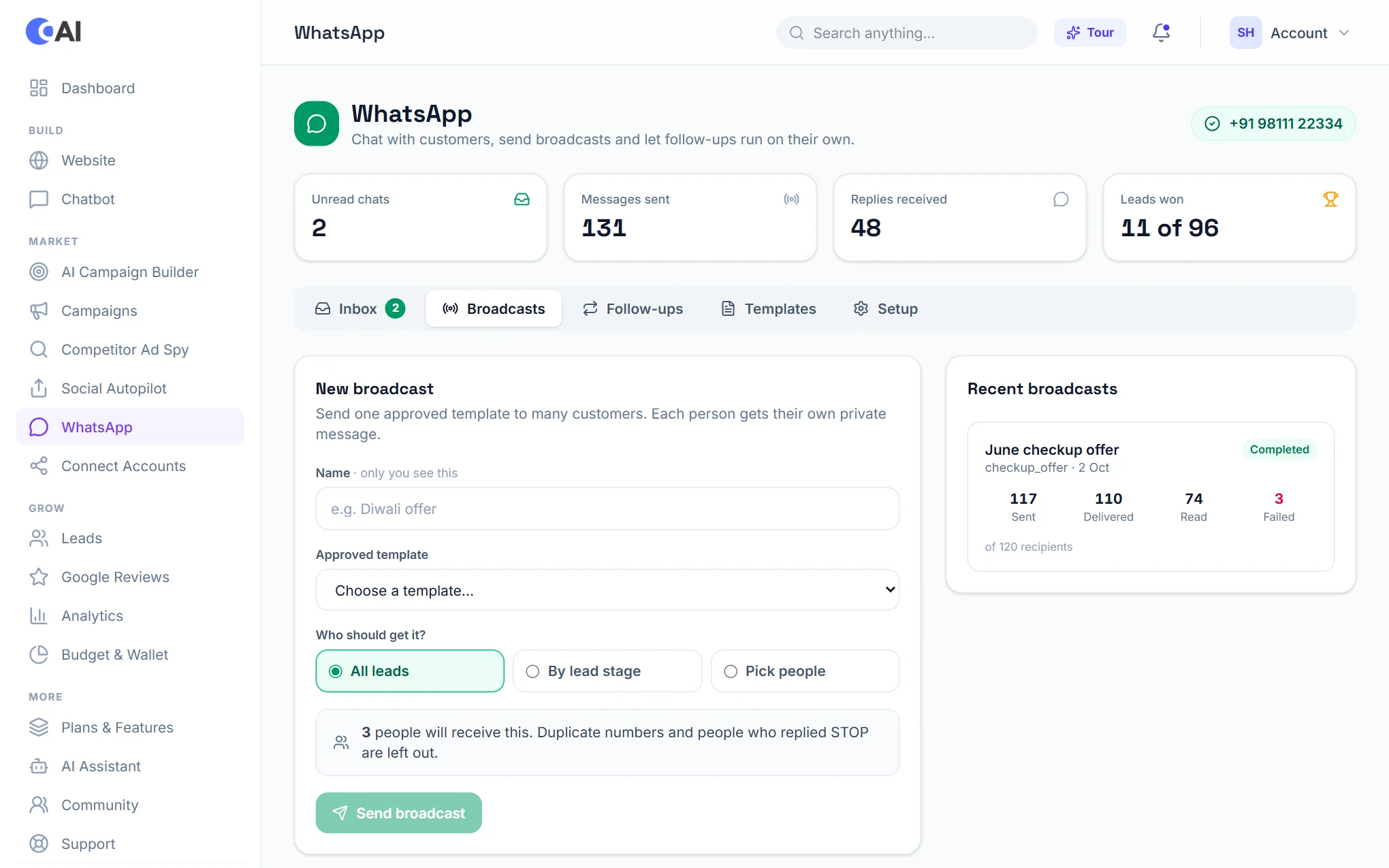
A broadcast sends one approved template message to many customers at once: an offer, a reminder, a festival greeting. Each person gets it as their own private message. On the Broadcasts tab:
- Give the broadcast a name. Only you see this.
- Choose an approved template.
- Choose who should get it: all leads, leads at a certain stage, or people you pick.
- Check the count of people who will receive it, then choose Send broadcast.
Duplicate numbers and people who replied STOP are left out automatically. Recent broadcasts on the right shows how many messages were sent, delivered, read and failed for each one.
Follow-ups
Follow-ups are messages that go out by themselves, for example a welcome to a new lead a few minutes after they enquire. On the Follow-ups tab, switch each one on or off and choose its template.
Templates
Meta has to approve a template before you can use it to message a customer first, in broadcasts and in follow-ups. On the Templates tab:
- Start from a ready-made template (a thank-you for enquiring, an appointment or payment reminder, an offer, a quote sent) or choose Let AI write it for your business.
- Pick the type (Marketing for offers, Utility for reminders and updates) and the language: English, Hindi, Marathi, Gujarati, Tamil, Telugu or Bengali.
- Fill in a sample value for every blank (
{{1}},{{2}}); Meta needs them to review it. Submit.
Your templates are loaded live from your WhatsApp Business account with whether each one is approved. Choose Refresh templates to check again.