
Social Autopilot
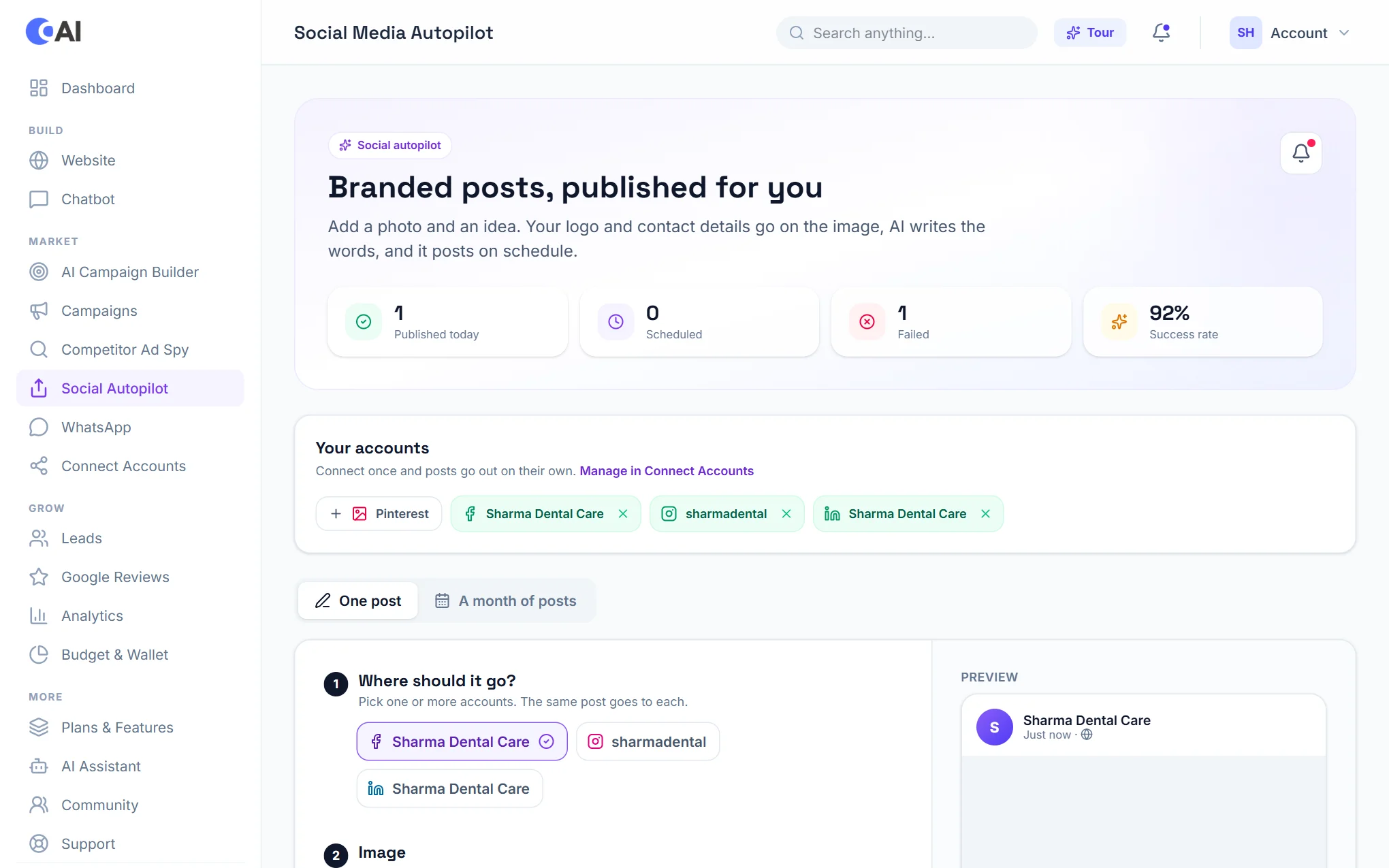
Add a photo and an idea. Your logo and contact details go on the image, AI writes the words, and it posts on schedule.
Before you start
Connect the pages and profiles you want to post to. They appear under Your accounts at the top of Social Autopilot.
Create a post
- Where should it go? Pick one or more accounts. The same post goes to each.
- Image: choose Upload photo, or Create with AI to have one made.
- What should it say? Write the caption yourself, or use Write with AI and Suggest hashtags.
- Choose a time (In 1 hour, Today 7 pm, Tomorrow 10 am or your own) and Schedule, or Publish now.
A month of posts at once
Switch from One post to A month of posts to plan many posts together. Add your photos and a short idea for each; the AI writes the captions and spreads them across the days you choose. You can edit or remove any post before it goes out.
Blog posts
The third choice, Blog post, writes a post for your Convotra website (the AI can draft it for 10 AI credits) and shares it on your social accounts. See SEO & Blog.
Your brand on every image
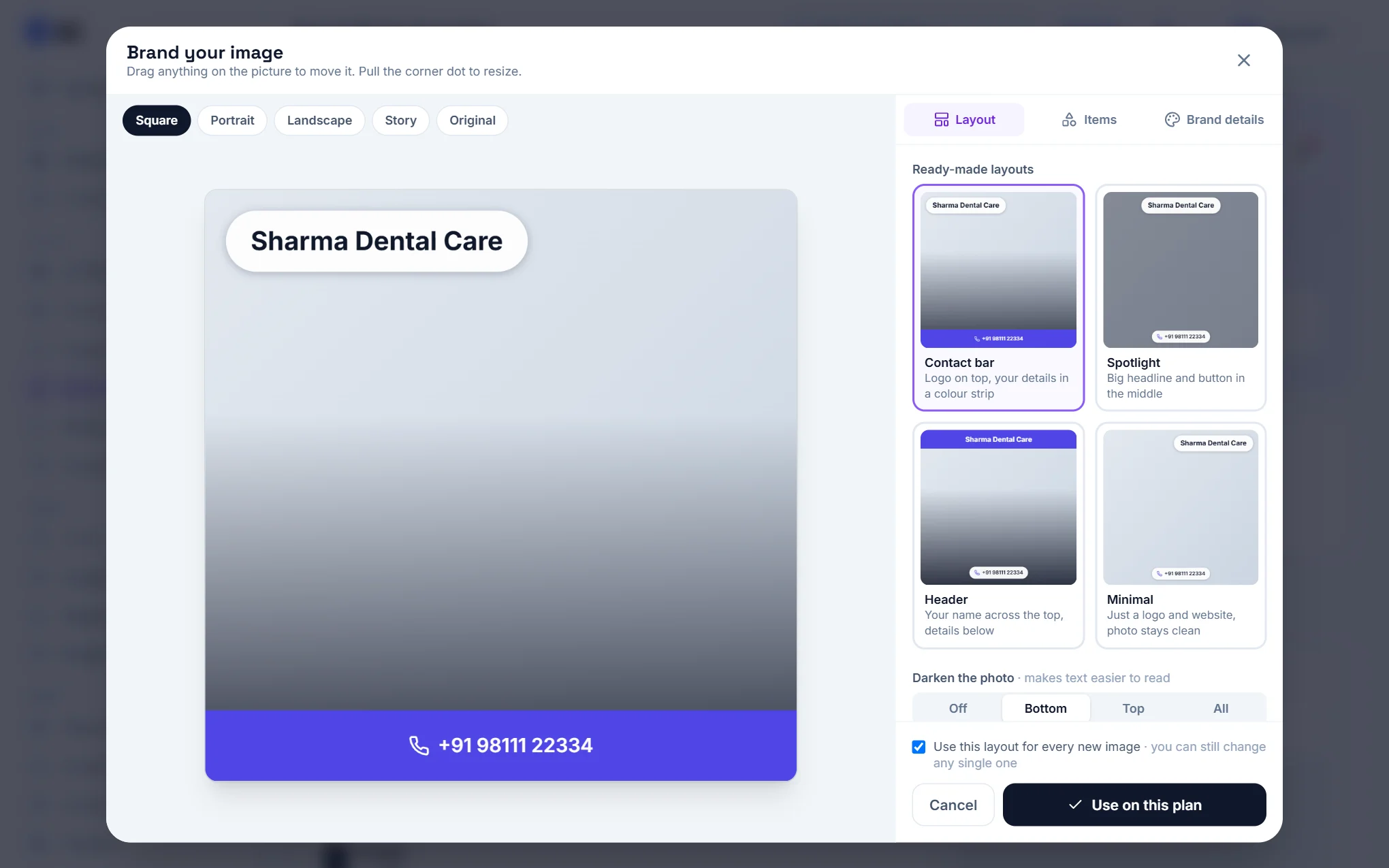
Choose Edit branding to open Brand your image. Your business name, logo and contact details are placed on the picture for you. From there you can:
- Pick a ready-made layout: Contact bar, Spotlight, Header or Minimal.
- Drag anything on the picture to move it, and pull its corner dot to resize it.
- Choose the shape: Square, Portrait, Landscape, Story or the original.
- Under Items, switch individual details on or off; under Brand details, set your logo, phone, website, location and colours.
- Darken the photo at the top, bottom or all over so the text is easy to read.
Tick Use this layout for every new image to make it your default. The same branding is used for ad images.
Social Autopilot and ads
Social Autopilot is for free, organic posts. Paid advertising on the same platforms is separate: see Ad Campaigns.