
Your Sales Team
For the salespeople and sales managers a business has invited to its CRM. Send this page to your team.
1. Join the team
- Open the email titled "… added you to their sales team" and choose Choose your password to start. The link works for 7 days; if it has expired, ask the business owner to invite you again.
- Check your name, choose a password of at least 8 characters, type it again and choose Join the team.
- You are taken straight to your Team CRM. Next time, sign in at convotra.website/login with your email and password and you land there.
If you already had a Convotra account, there is no link to follow: sign in as usual and open convotra.website/team-crm. If you are on more than one business's team, switch between them from the name at the top.
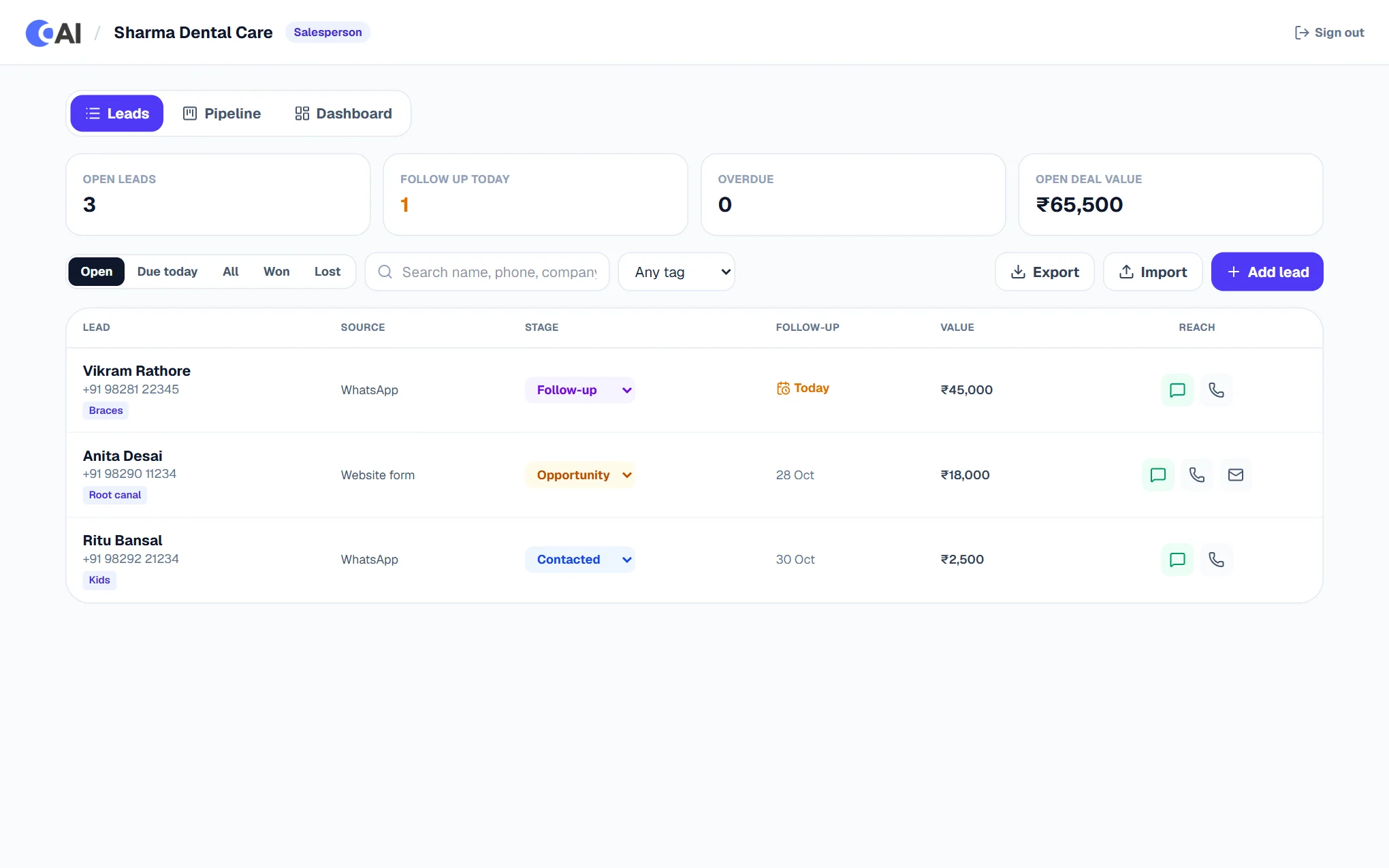
2. What you see
- Salesperson: the leads handed to you and the ones you add yourself. You cannot see your colleagues' leads.
- Sales manager: every lead of the business, a filter by owner, handing leads out, and the team's numbers and targets.
The Team CRM is only the CRM. The business's website, WhatsApp settings, ads and billing are not part of it.
3. Every day
- Read your 8:30 reminder. If the business switched it on, you get an email (and possibly a WhatsApp) each morning listing the leads you should follow up today and any that are overdue.
- Open Due today. That is your call list, oldest first. Overdue leads are marked in red.
- Open a lead by clicking its name. Call it with the phone button or message it with WhatsApp.
- Log what happened straight after: choose Call, WhatsApp, Meeting, Visit, Email or Note, write one line, set the next follow-up date and Save. Your name goes on the entry.
- Move the lead along: Contacted, Follow-up, Opportunity, and finally Won (with the deal value) or Lost (with the reason).
4. A lead you found yourself
Choose Add lead (a walk-in, a referral, someone you met). It is yours automatically. If that person is already someone else's open lead, you are told instead of creating a duplicate.
5. Your numbers
The Dashboard tab shows your month: open leads and what they are worth, due and overdue follow-ups, wins, your win rate and where your leads came from. If a target was set for you, it shows how far you are.
For sales managers
- Hand out leads: in the Leads tab filter by No owner, tick the leads, choose Hand them to… a person or Share out evenly across the team, and Hand out. Each person is emailed.
- See one person's work: filter by owner, or look at the people table on the Dashboard: open, due today, overdue and won for each.
- Set targets: on the Dashboard choose Target next to a person and enter the month's sales (₹) and number of deals.
- Inviting people, roles and automation are set by the business owner.
If something is not right
- "This invitation has already been used": you joined already; sign in with your password. Forgot it? Use Forgot password on the sign-in page.
- "…'s plan does not include a sales team at the moment": the business's plan changed. Your leads are safe; ask the owner.
- A lead disappeared from your list: it was handed to someone else, or you were taken off the team.