
AI Editor
Click anything on your website and say what should change. You see the exact change before it goes live, and every change can be undone.
Open Website and choose Edit with AI. Your site opens on the right; the tools are on the left.
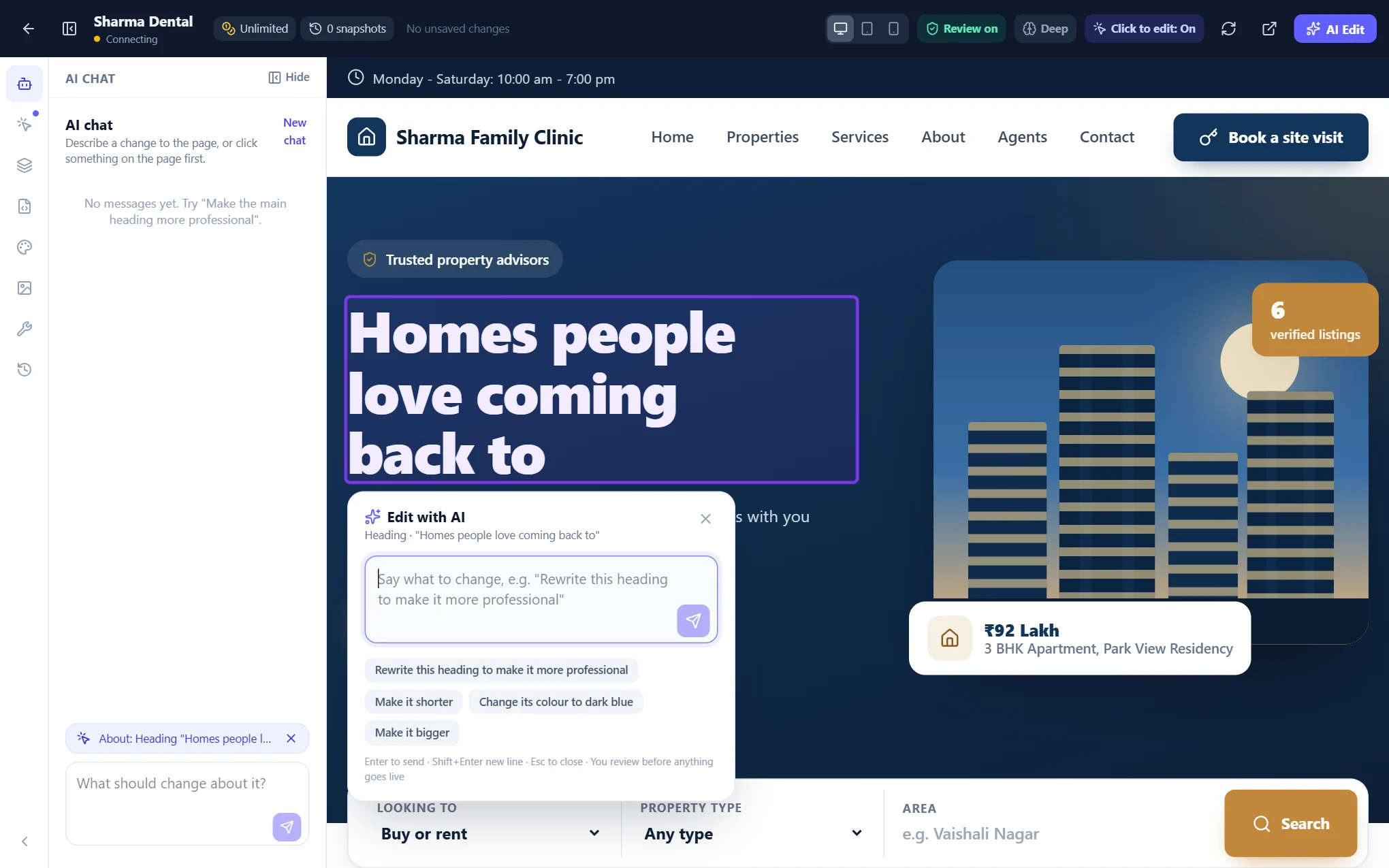
Change something by clicking it
- Move over the page: each part is outlined with Click to edit with AI. (Turn this on or off with Click to edit at the top.)
- Click it. The Edit with AI box opens right there, showing what you clicked, with suggestions such as "Make it shorter" or "Give this image rounded corners".
- Type what you want, for example "Rewrite this heading to sound more welcoming", and press Enter.
- With Review on (the default), you get Check before it goes live: what will change, and Show the exact change for the details. Choose Apply, or Not this to drop it.
- The page reloads with the change. Undo it any time from History.
To change the page as a whole ("make the buttons rounded", "use a darker blue"), choose AI Edit at the top without clicking anything first, or use AI chat on the left, which keeps the conversation.
Move and resize pictures by hand
Click a picture, or a section with a background picture, and choose Move or resize the picture by hand. The controls open on the left and every change shows on the page at once:
- Position: drag the dot over the small copy of the picture, pick one of nine spots, or use the Left–right and Top–bottom sliders. This chooses which part of the picture shows.
- Backgrounds: size (Fill, Fit whole, or Zoom with a slider), repeat as tiles, and the section's height.
- Pictures: width, height, crop (Fill & crop, Show all, Stretch), rounded corners or a circle, and left, centre or right.
Choose Save to keep it, or the undo arrow to drop what you have not saved. Remove my adjustment returns the picture to how the design shows it. If other parts of the page share the same style, the panel tells you they change too.
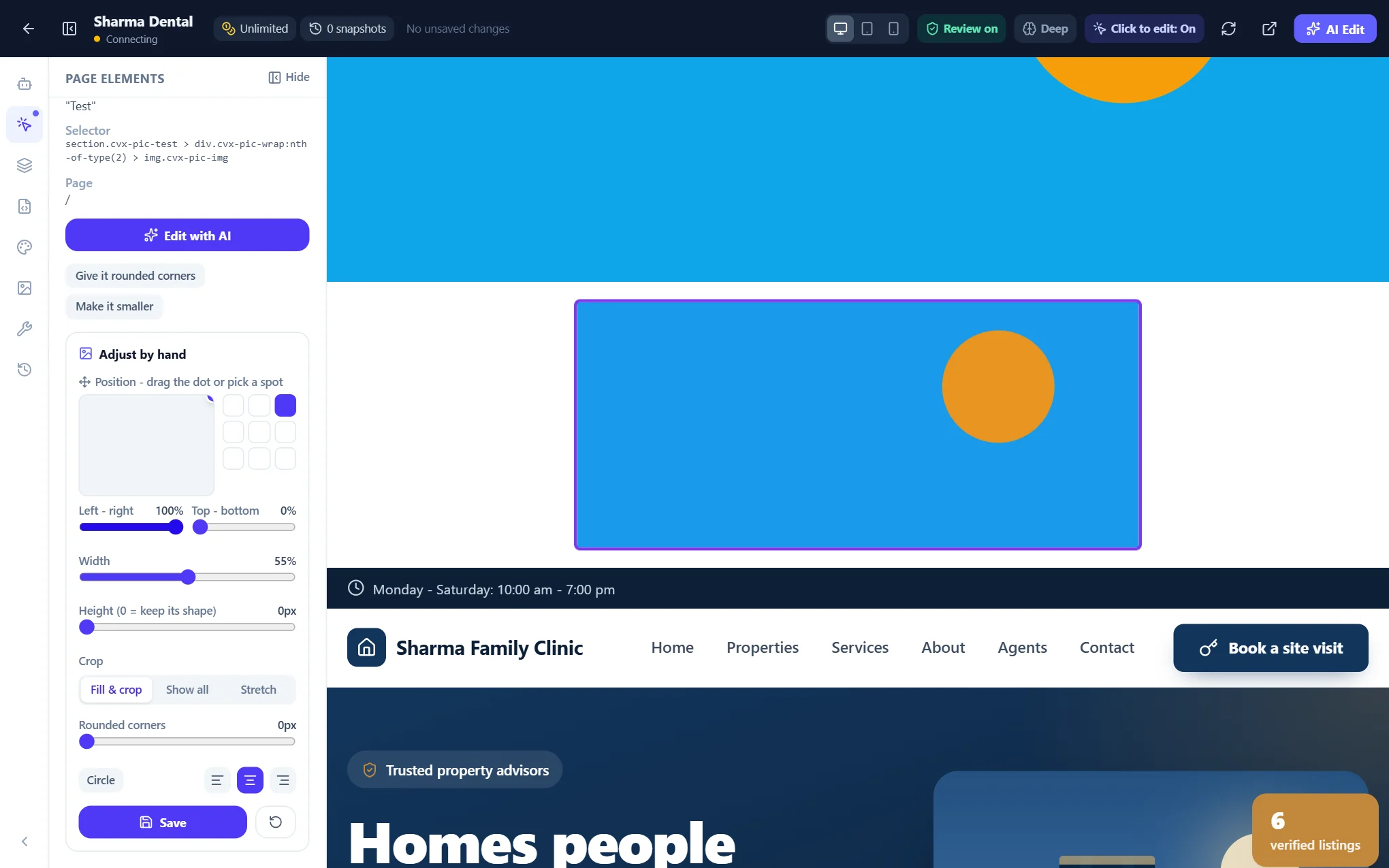
The tools on the left
- AI chat: a conversation with the editor about the whole page.
- Page elements: what you clicked, quick suggestions for it, and the picture controls.
- Pages: open any page of your site in the editor.
- Files: the theme files that are safe to edit by hand. A snapshot is kept before every save.
- Design: your theme's colours, button style and other choices, or ask the AI for a new look.
- Media: upload a picture to your website and use it with the AI ("put this picture in the top section"). Only pictures in your website's Media can be used.
- Advanced tools: Snapshots (save one now, or restore an earlier one), SEO, a short list of safe WordPress commands, plugins and your domain.
- History: every change with what was asked and on which part of the page. Undo puts it back; a change waiting for review can be applied or dropped from here.
Hide the tools with the panel button at the top (or Ctrl+B) to see the site full width, and switch between Desktop, Tablet and Phone to check every size.
Snapshots: your safety net
A snapshot is a saved copy of your site's design files. One is taken automatically before AI changes and file edits; you can also save one yourself before a big change (Advanced tools › Snapshots, or Website › Snapshots & Backups). Restoring one puts the site back exactly as it was.