
Leads CRM
Every enquiry from your website, chatbot, WhatsApp and Instagram in one place, worked from the first call to won or lost, by you or your sales team.
Open Leads from the menu (under Grow). Along the top are five tabs: Leads, Pipeline, Dashboard, Team and Automation. What each one offers depends on your plan; anything your plan does not include is shown locked, with what unlocks it.
| What you can do | Every plan | Paid plans | Top plans |
|---|---|---|---|
| Every enquiry in one list, search, move leads between stages, export to CSV, WhatsApp / call / email buttons | ✓ | ✓ | ✓ |
| Pipeline board (drag a lead to another stage) | – | ✓ | ✓ |
| Add leads by hand and import them from Excel or Google Sheets | – | ✓ | ✓ |
| Details, tags, deal value, notes and a log of every call, WhatsApp, meeting and visit | – | ✓ | ✓ |
| Follow-up dates with Due today and Overdue | – | ✓ | ✓ |
| Dashboard: pipeline, wins, win rate, sources, lost reasons | – | ✓ | ✓ |
| A sales team who see only the CRM, handing leads out, a manager's view | – | – | ✓ |
| Monthly targets per person | – | – | ✓ |
| New leads shared out automatically, the 8:30 follow-up reminder by email and WhatsApp | – | – | ✓ |
Where leads come from
You do not have to type leads in. They arrive by themselves from:
- the chatbot on your website, when a visitor leaves their details;
- the forms on your website (appointment, enquiry and booking forms on Convotra themes);
- WhatsApp, when someone messages your business number for the first time;
- Instagram, when someone messages your account.
Each new lead gets a first follow-up date (the same day, unless you change it under Automation) and a line in its history saying where it came from. If the same person enquires again while their lead is still open (even with the phone number typed differently), the enquiry is noted on that lead instead of creating a second one.
The Leads tab
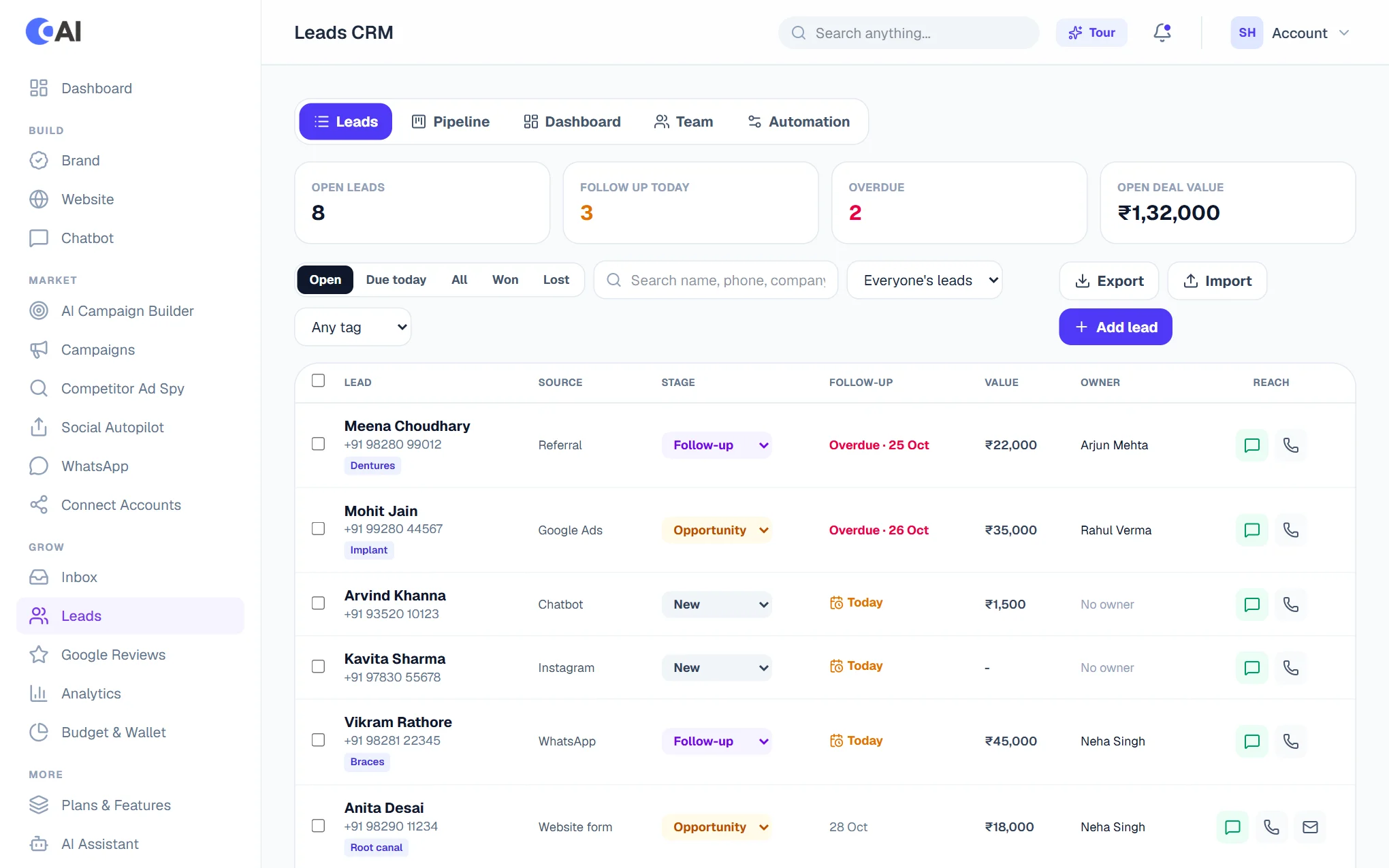
- Which leads: Open (still being worked), Due today (follow-ups due today or late: your call list), All, Won and Lost.
- Search by name, company or any part of the phone number. Filter by tag, and on a top plan by owner (Everyone, Mine, No owner, or one person).
- Change a lead's stage straight from its row. Moving a lead to Lost asks why.
- The green, phone and mail buttons WhatsApp, call or email the person.
- Export downloads the leads shown as a CSV file that opens in Excel.
Adding and importing leads
Add lead takes a name and a phone number or email, plus anything else you know: company, city, where they came from, deal value, tags, the first follow-up date and notes. Someone who is already an open lead is not added twice: you are told, and it is noted on their lead.
Import takes a CSV file from Excel or Google Sheets (File › Download › CSV), or rows pasted in. The first row must name the columns; Convotra understands name, phone (or mobile), email, company, city, value, notes, tags and source. Up to 500 rows at a time. When it finishes you see how many were added, how many were already in your CRM, and which rows were skipped and why.
Working a lead
Click a lead's name to open it on the right.
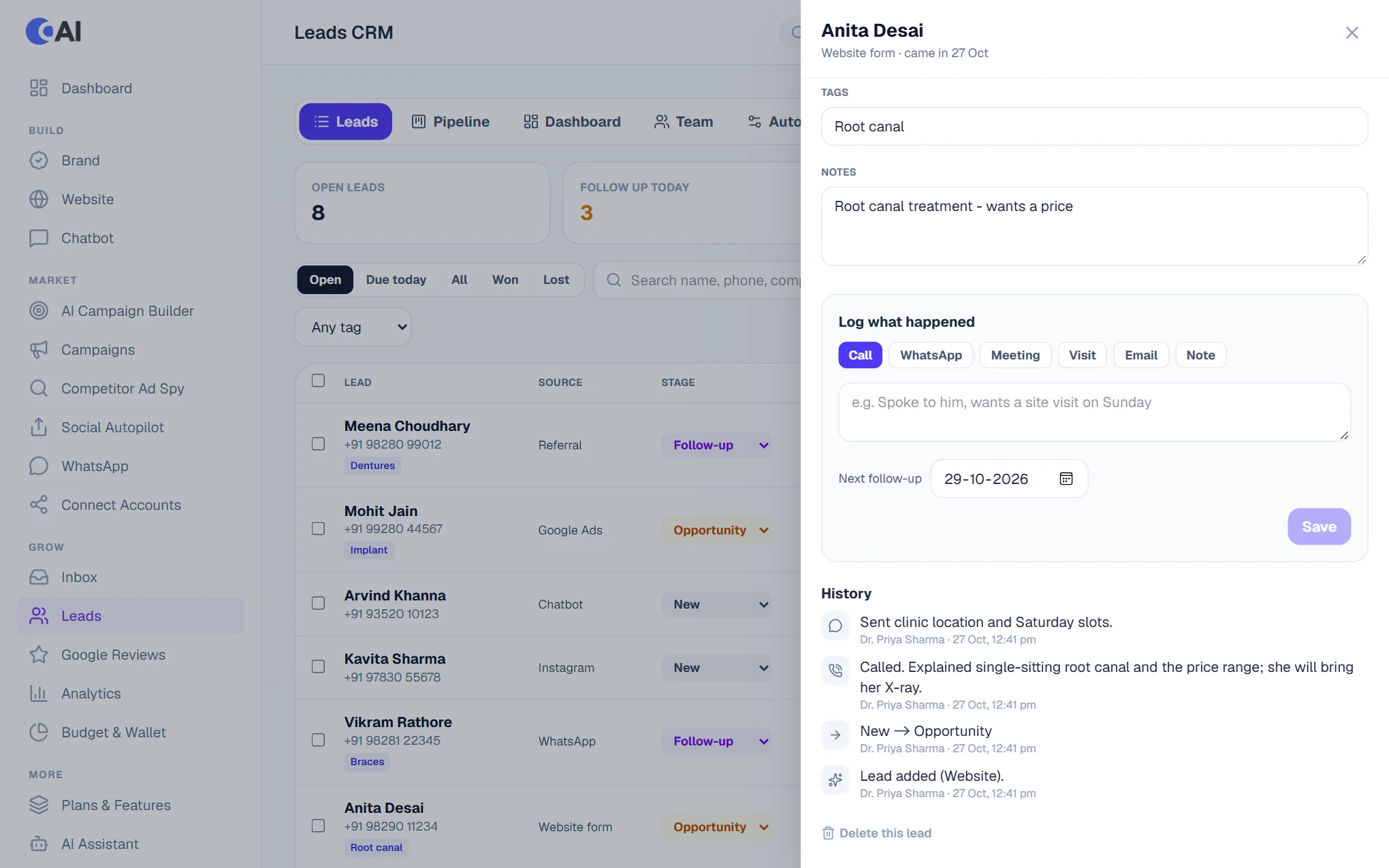
- Reach them with the call, WhatsApp or email buttons at the top.
- Log what happened: pick Call, WhatsApp, Meeting, Visit, Email or Note, write one line ("Spoke to Anil, wants a site visit on Sunday"), choose the next follow-up date and Save. Logging a call or message on a New lead moves it to Contacted.
- Next follow-up: pick a date, or use Tomorrow, In 3 days or Next week. An open lead should always have one; that is what puts it on someone's call list.
- Details: name, phone, email, company, city, source, tags and notes. What the person originally wrote is shown under What they wrote.
- Stage and value: set the deal value, and move the lead along as it progresses.
- History lists everything that happened, newest first, with who did it and when: the enquiry, every call and note, stage changes and handovers.
Only the business owner can delete a lead (for spam or a test); its history goes with it.
The pipeline board
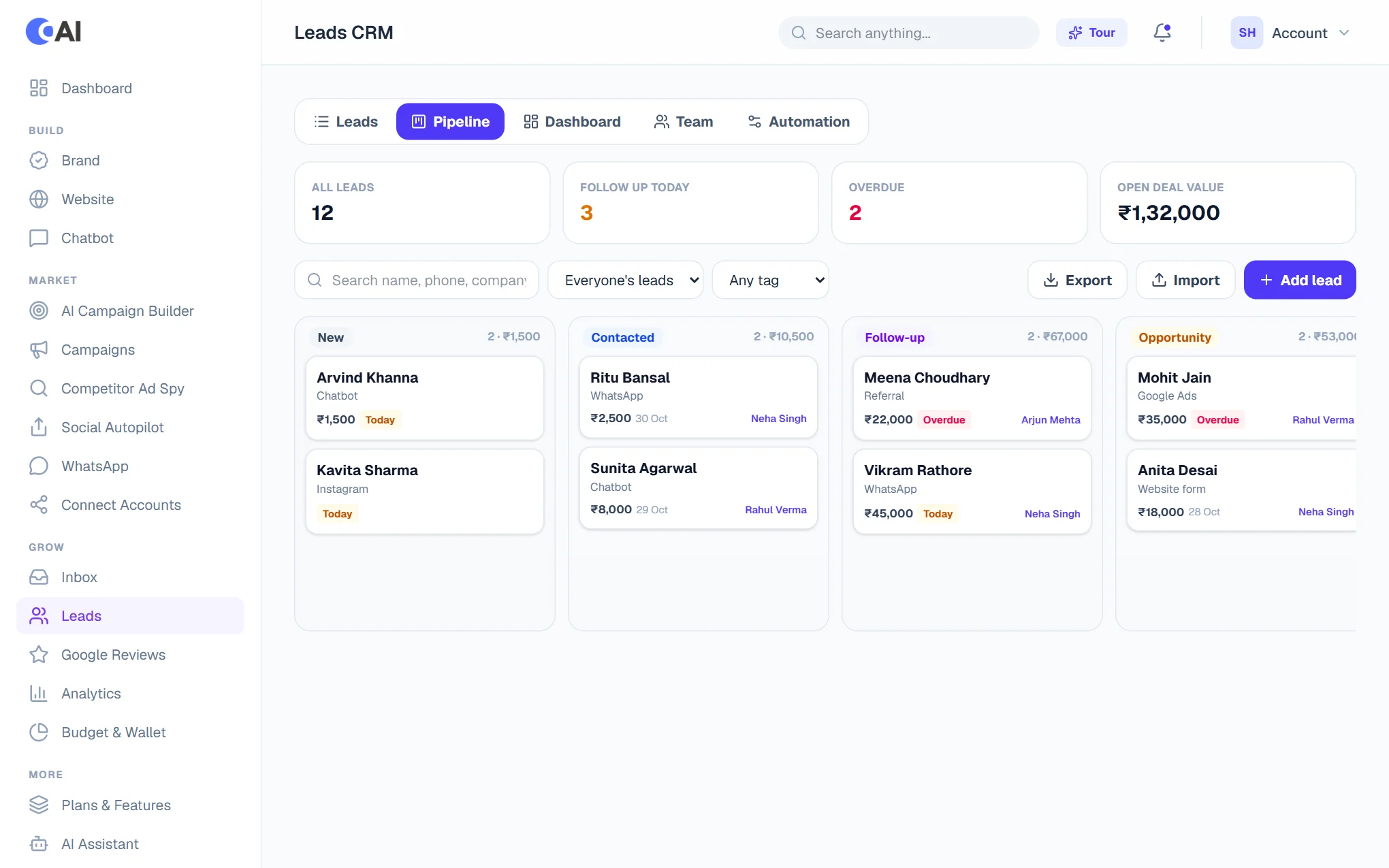
The Pipeline tab shows a column for each stage (New, Contacted, Follow-up, Opportunity, Won, Lost) with the number of leads and what they are worth. Drag a card to another column to move the lead. Dropping a lead on Lost asks why it was lost; the reasons are counted on the dashboard so you can see what to fix.
The dashboard
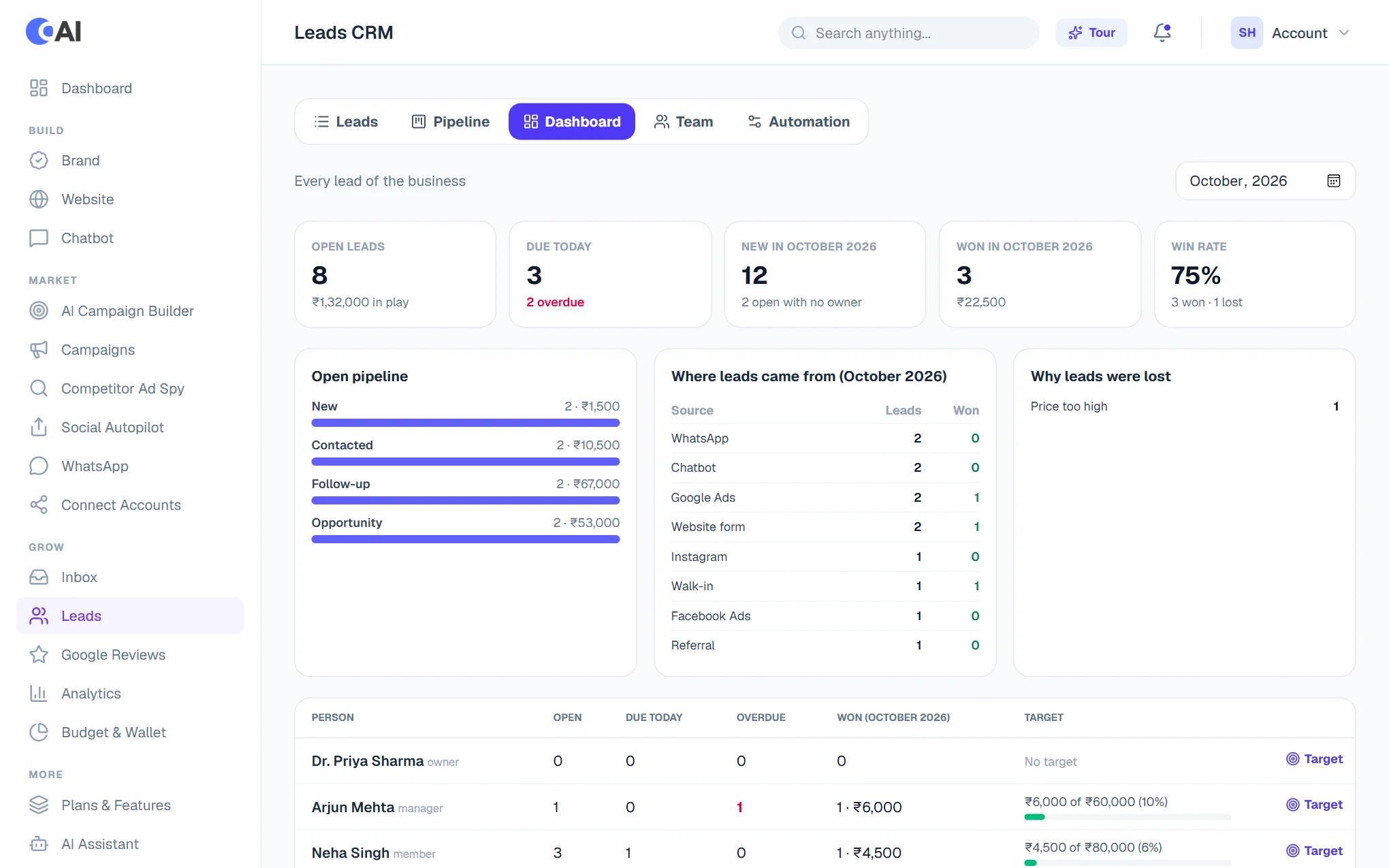
Choose a month to see: open leads and what they are worth, follow-ups due today and overdue, new leads, leads won (with their value), the win rate, the open pipeline by stage, where leads came from (and how many of each were won) and why leads were lost. On a top plan a table shows each person's open, due, overdue and won leads and their progress against target.
Your sales team (top plans)
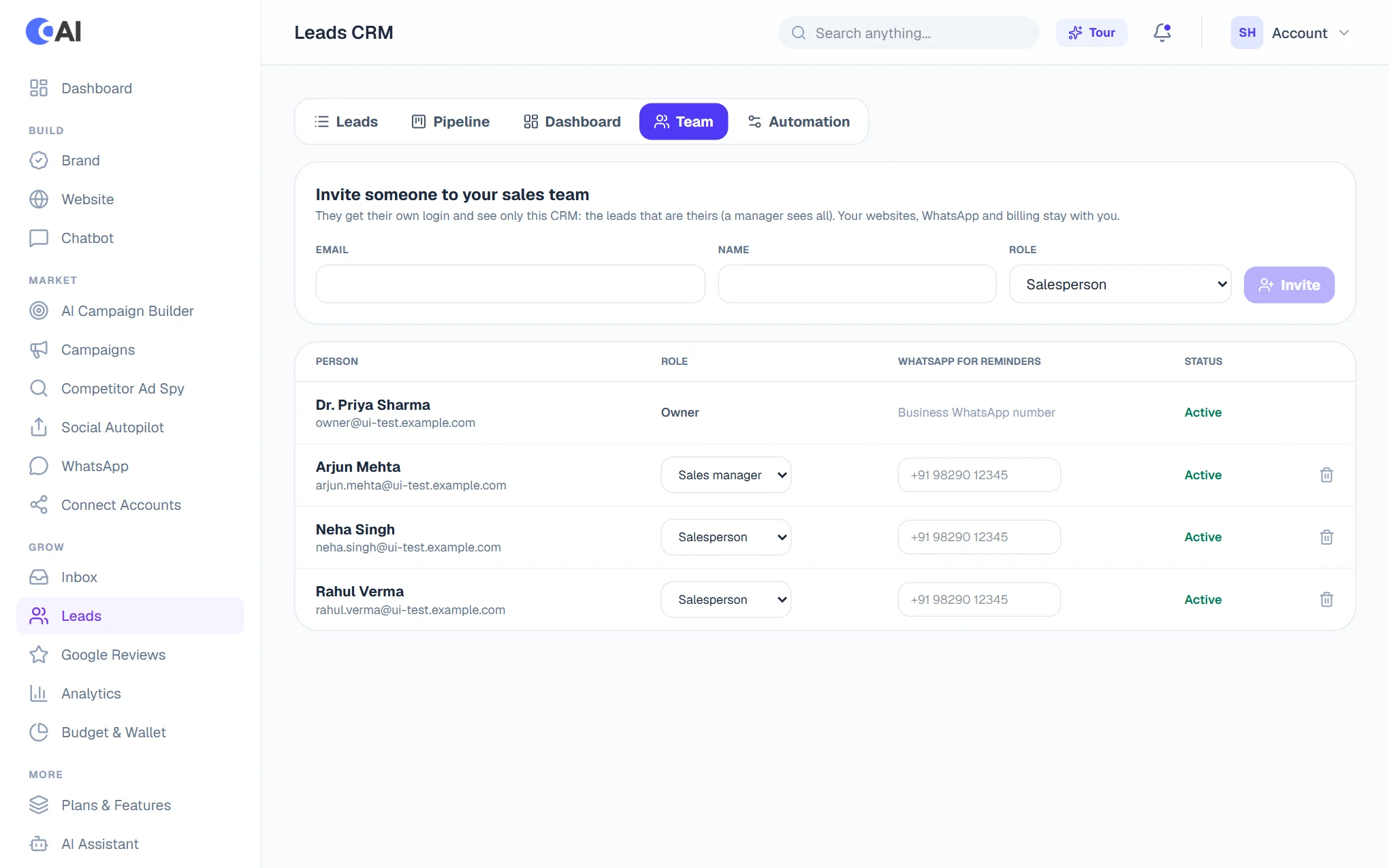
On the Team tab, invite the people who sell for you. Enter their email and name and choose a role:
- Salesperson: sees and works only the leads that are theirs.
- Sales manager: sees every lead, hands leads out and sets targets.
Someone new gets an email with a link to choose a password (it works for 7 days); someone who already has a Convotra account is added straight away. If the email does not arrive, the Team tab shows the link so you can send it yourself, for example on WhatsApp. People on your team see only this CRM: your websites, WhatsApp settings, ads and billing stay with you. Here you can also change someone's role, add the WhatsApp number their reminder should go to, or take them off the team (their open leads then have no owner until you hand them out again).
Handing leads out
- One lead: open it and choose who works it.
- Many at once: tick leads in the list, then Hand them to… a person, Share out evenly across the team, or Nobody, and choose Hand out.
- Automatically: switch on sharing under Automation and every new lead goes to whoever has the fewest open leads.
Each person is emailed when leads are handed to them.
Targets
On the Dashboard, choose Target next to a person and enter what they should close that month in rupees and in deals. Their progress bar fills as their leads are won.
Automation (top plans)
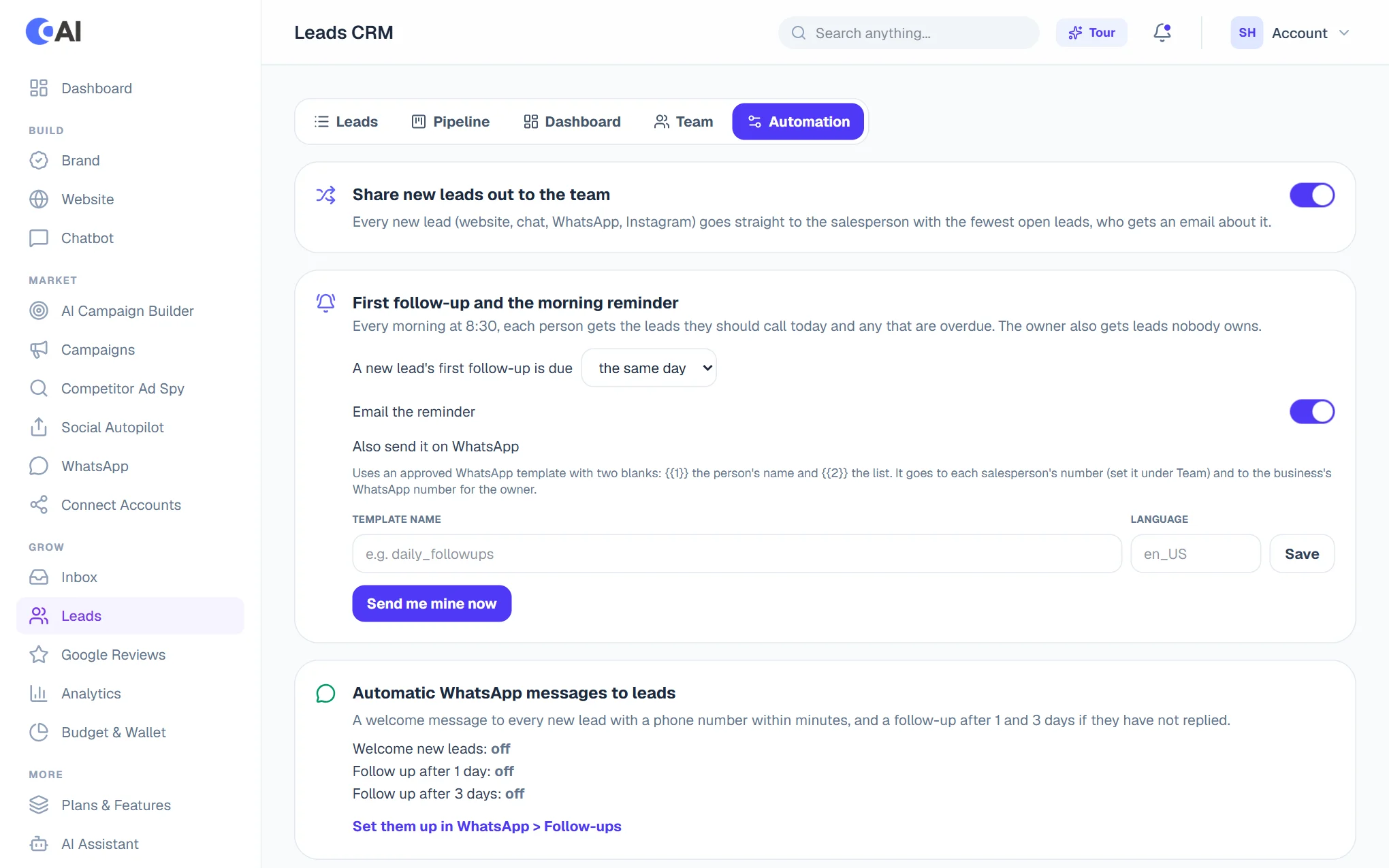
- Share new leads out to the team: each new lead goes to the salesperson with the fewest open leads, who gets an email about it.
- First follow-up: due the same day, the next day, or 2, 3 or 7 days after a lead arrives.
- The morning reminder: every day at 8:30 (India time) each person is emailed the leads they should follow up today and any that are overdue. The owner also gets leads nobody owns. Send me mine now shows you what arrives.
- The reminder on WhatsApp: choose an approved WhatsApp template with two blanks, {{1}} for the person's name and {{2}} for the list. It goes to each salesperson's number (set it on the Team tab) and to the business's WhatsApp number for the owner.
- Automatic WhatsApp messages to leads (a welcome within minutes, and a follow-up after 1 and 3 days without a reply) are set up in WhatsApp › Follow-ups; the Automation tab shows whether they are on.